Introduction
Q360 eAcceptance feature is a secure mechanism to request a digital signature and acceptance of a document from a Q360 contact via their email address.
Business Challenge
Reliably request and accept a recipient’s agreement for a document electronically and within a given time frame. At any point in time, track to view status of the request and history of actions taken on the document.
Key Takeaways
-
- A system user with the appropriate permission may request an “eAcceptance” from any document grid or print modal form
- The eAcceptance involves a secure method to view the document, optionally add a comment, check the “I accept” checkbox, add a signature, and submit the acceptance electronically
- The workflow sequence steps are: a) a system user requests a document eAcceptance from recipient(s); b) the recipient agrees to receive an Access Code via email; c) system sends the Access Code to recipient; d) recipient enters and submits the Access Code; e) system displays the document to recipient; f) recipient views, signs and accepts the document
- A system user can view history of a document for which eAcceptance was requested: from the time access code is sent and validated > document is viewed or downloaded > document is accepted
- As of Q360 v22.01, eAcceptance stores and displays signatures with a watermarked background specifying the document ID that the signature belongs to
In Q360
- Setup
- Pre-requisite:
-
- Email engine is configured and set up
- Maintenance > API Configuration > Director is configured
-
- Configdata: EACCEPTANCEEXPIREHOURS
-
- The number of hours from requesting eAcceptance before the link to the document will expire and is unusable
- Default value: 360 (i.e. 15 days)
-
- User permission: eAcceptance
-
- VIEW grants access to a) eAcceptance column on document grids, b) eAcceptance tab on document properties form, and c) eAcceptance history data in the document properties history grid
- CREATE grants access to user to send an eAcceptance request to Q360 contact(s), from document grids and print modals
- DELETE grants access to user to cancel an eAcceptance request
-
- Email templates:
- Go to Maintenance menu > Email Template Admin
- Search for eAcceptance – a grid listing current eAcceptance email templates will appear
- View template details or modify template by drilling into a line item
-
- EACCEPTANCE_REQUEST | for the initial request to recipient for eAcceptance
- EACCEPTANCE_QUOTE | for the initial request to recipient for eAcceptance, for quote documents
- EACCEPTANCE_ORDER | for the initial request to recipient for eAcceptance, for order documents
- EACCEPTANCE_ACCEPT | to inform the requestor that the document was accepted
- EACCEPTANCE_USRACCPT | to confirm to the signatory that the document was accepted by them
- EACCEPTANCE_VIEWED | to inform the requestor that the document was viewed/downloaded
- EACCEPTANCE_WARNING | to inform the requestor that the eAcceptance URL is locked due to too many failed access codes
-
- Specify text to display in the Document Preview “Disclaimer” section
-
- First, system looks up at the customer record level for which the document is applicable
-
- To specify the text for a specific customer/vendor, go to: Customer form > Cust/Vend tab > eAcceptance subtab > Disclaimer Text field
-
- If above is not setup, then system looks up text specified in the default company setup:
-
- Accounting > Admin > Company Setup > eAcceptance tab > Disclaimer Text field
-
- If none of the above has a disclaimer text setup applicable, then the system will not display the disclaimer input on the eAcceptance preview page
- First, system looks up at the customer record level for which the document is applicable
-
- Pre-requisite:
- Impact on transactions:
- Initiate a document eAcceptance request
-
- There are two (2) methods to initiate the request:
- Request from a “Print Report“: select “Print Destination” option “eAccept”, select the “Email To” recipient, then click “Send Email” button; or
- Request from a Document grid: select the document(s) row, click extended menu “Request eAcceptance“, select a contact, and when “Send Email” message pops up, click “Send Email” button
- In the system, notice the documents tab now includes the document, with attribute “eAcceptance” column. An initial value of “0/1” indicates zero “0” acceptance for the one “1” request made to the recipient for eAcceptance
- There are two (2) methods to initiate the request:
-
- Recipient (a Q360 Contact) receives an email with a “Document” link and is expected to accept it electronically. The link expires according to the system configuration expiry hours
- When the recipient clicks on the link, a “Document eAcceptance”, a pop up appears with message: “You have been sent a document by [name of requestor] to accept. Please click this [Send Access Code] button for your access code”
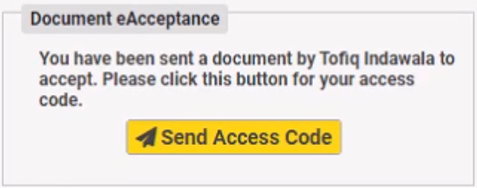
eAcceptance prompt: Send Access Code - When recipient clicks on the “Send Access Code” button, a pop up appears with message: “You have been sent a document by [name of requestor] to accept. Please enter your access code”

eAcceptance prompt: Submit Access Code - Simultaneously, an email with the access code is sent to the recipient with these security features:
-
- Time limit: The access code is valid for maximum 15 minutes after it is sent
- Attempt limit: Five (5) incorrect access code input attempts disables the eAcceptance URL, and initiates the system to send an email for template ACCEPTANCE_WARNING.
-
- When recipient enters the access code (retrieved from their email), the document preview page appears
- This action initiates the system to send an email for template EACCEPTANCE_VIEWED
- Recipient can
- zoom in/out to view the document
- enter their name
- check the “I accept” checkbox
- enter their signature
- enter comments
- “Accept” the document, and
- click the “Download Document” button for their copy of the document
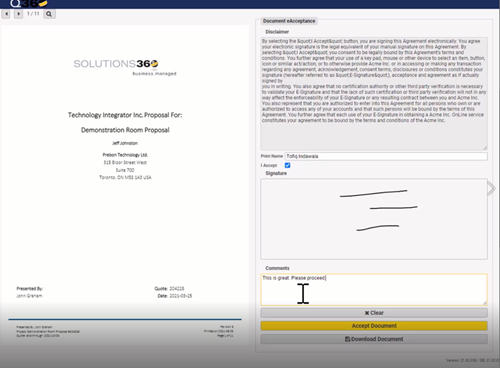
eAcceptance: sign and accept document
- Once the document is “accepted” by the recipient, i.e. check the “I accept” checkbox for disclaimer, enter a signature, and click “Accept Document” button
- The system to send an email for template EACCEPTANCE_ACCEPT, and
- Its document properties is updated:
-
- Status is “ACCEPTED”
- Accepted Date is filled in
-
- When the recipient clicks on the link, a “Document eAcceptance”, a pop up appears with message: “You have been sent a document by [name of requestor] to accept. Please click this [Send Access Code] button for your access code”
- At any point during the process, a user with appropriate permission has visibility to the following tracking of the eAcceptance request:
- From the document grid, view the document eAcceptance column for stats (accepted count/requested count)
- From the document properties, view the eAcceptance details in
- “eAccept” tab for eAcceptance Requests, including the signature of each eAcceptance recipient, if applicable, and
- “History” tab
- Initiate a document eAcceptance request