Route Site Locations with Google Maps
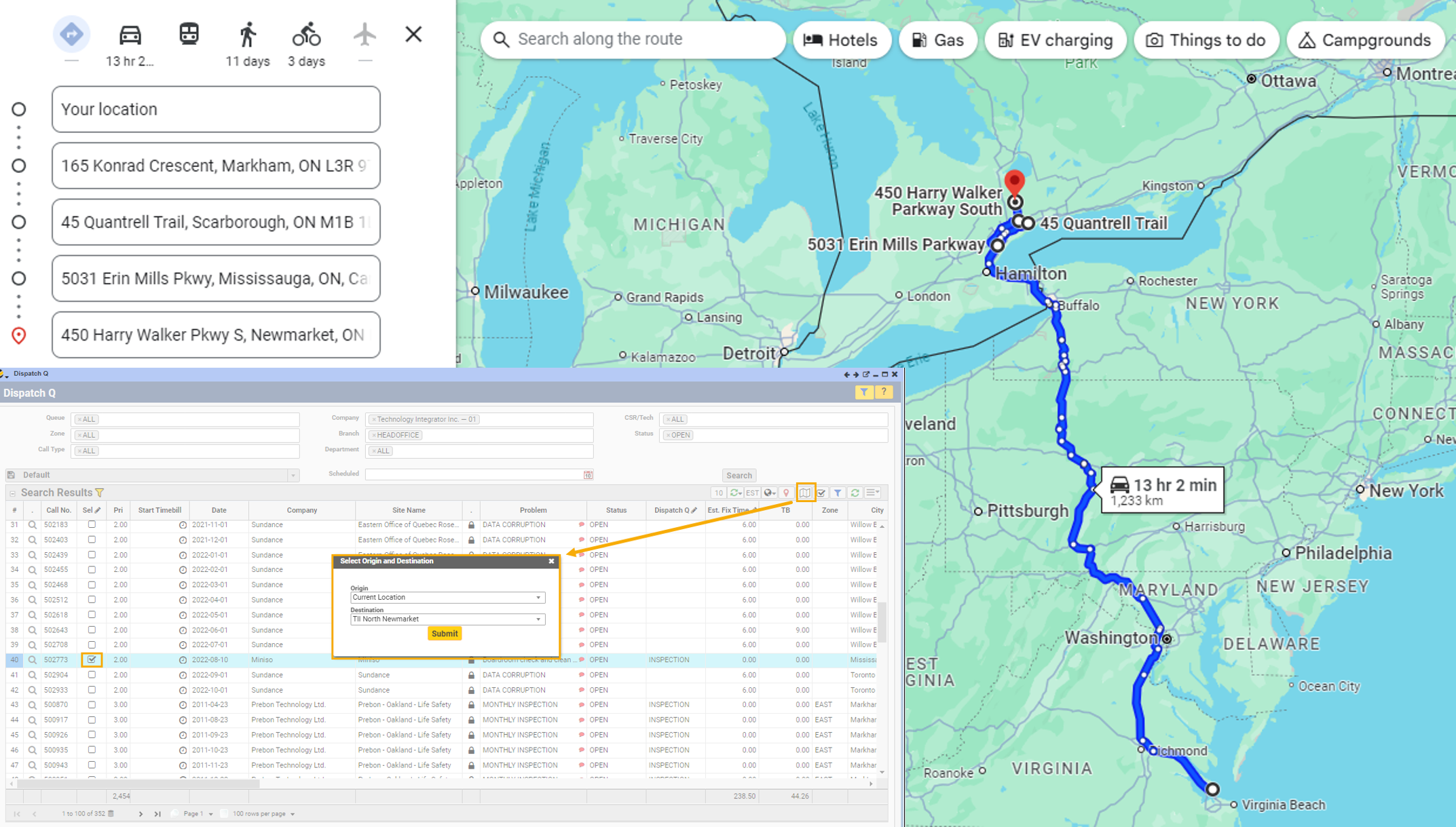
The route button on various forms i.e. Dispatch Q or My Tasks may be used to retrieve a site address and redirect the user to Google Maps for directions to that address
- On any form featuring the Route button, use the Sel (select) column checkboxes to select one or more rows. Alternatively, you may highlight a single row simply by clicking on it, or multiple rows by using the Ctrl + click method
- Click the Route button. A “Select Origin and Destination” window will open. Note: The sites listed in the dropdown menu come from the Customer record associated with the Company Number. The “Home” option will look for an address associated with your USERID – if that is not found, it will look at the Contact information on your user record.
- Make your selections for Origin and Destination and click the Submit button
- Google Maps will open and plot your route. If multiple rows were selected in the grid, Google Maps will plot a route that passes through all selected row sites
Prefer to view this information as a video?