Most forms in Q360 have an Advanced Search option that may be accessed by clicking the magnifying glass icon on the toolbar at the top of the form. This action will open a new Advanced Search window.
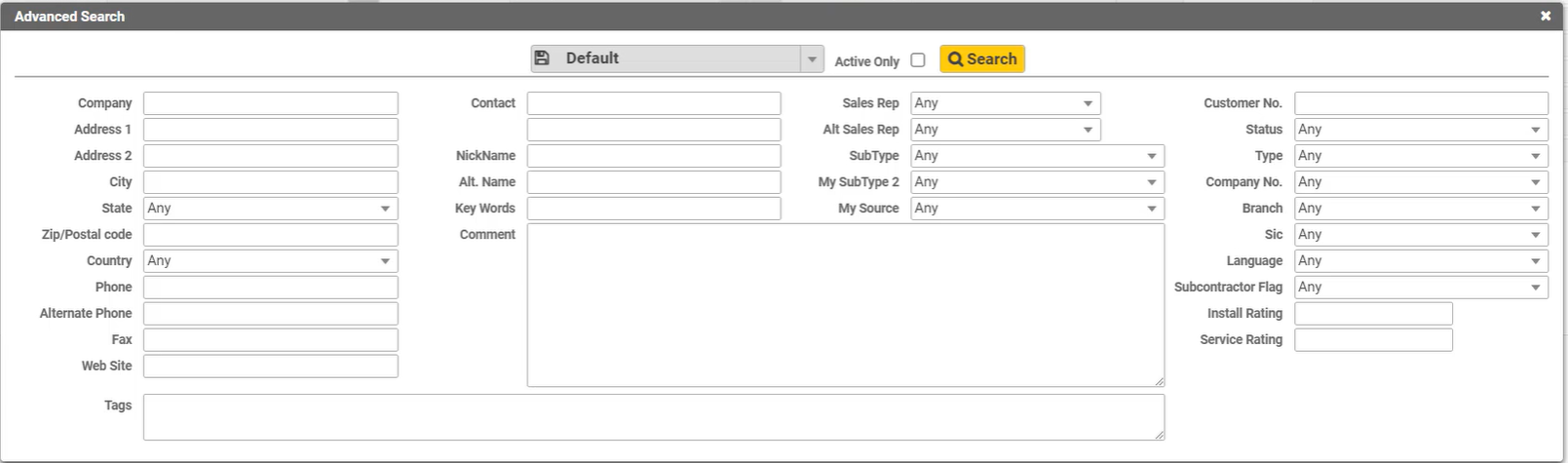
The Advanced Search fields will differ based on from which form it is accessed, for example, the Customer form Advanced Search option will allow the user to search for any field that is included in the Customer form table in the database (see sample Customer Advanced Search form below).
From the Advanced Search form:
- Complete as many fields as needed to narrow your search
- Click the Search button
- Note: Search criteria may be saved as the Default search criteria using the Default button. This is useful when you frequently search for the same criteria. When the Default drop down menu opens, type in a name for your search and click the ADD (+) button next to this field
- Note: The Active Only checkbox may be used to narrow search results to only items in a currently ACTIVE state
- A results grid will appear in a new window
- Results may be further refined using the grid filter option (Funnel icon)
- Note: Search criteria may be saved as the Default search criteria using the Default button
- Note: The Active Only checkbox may be used to narrow search results to only items in a currently ACTIVE state
Prefer to learn from a video?

Sample Customer Advanced Search form:
What to know more about searching within Q360? Check out