Checklists are a useful tool and may be added to Project Tasks and Service Calls. Creating (defining) your own checklists is a simple process that may be completed within Q360 using the Define Checklists option on the main Projects menu.
Create (define) a new Checklist:
- From the Projects main menu, select the Define Checklists item. A Checklist Definition Search window will open
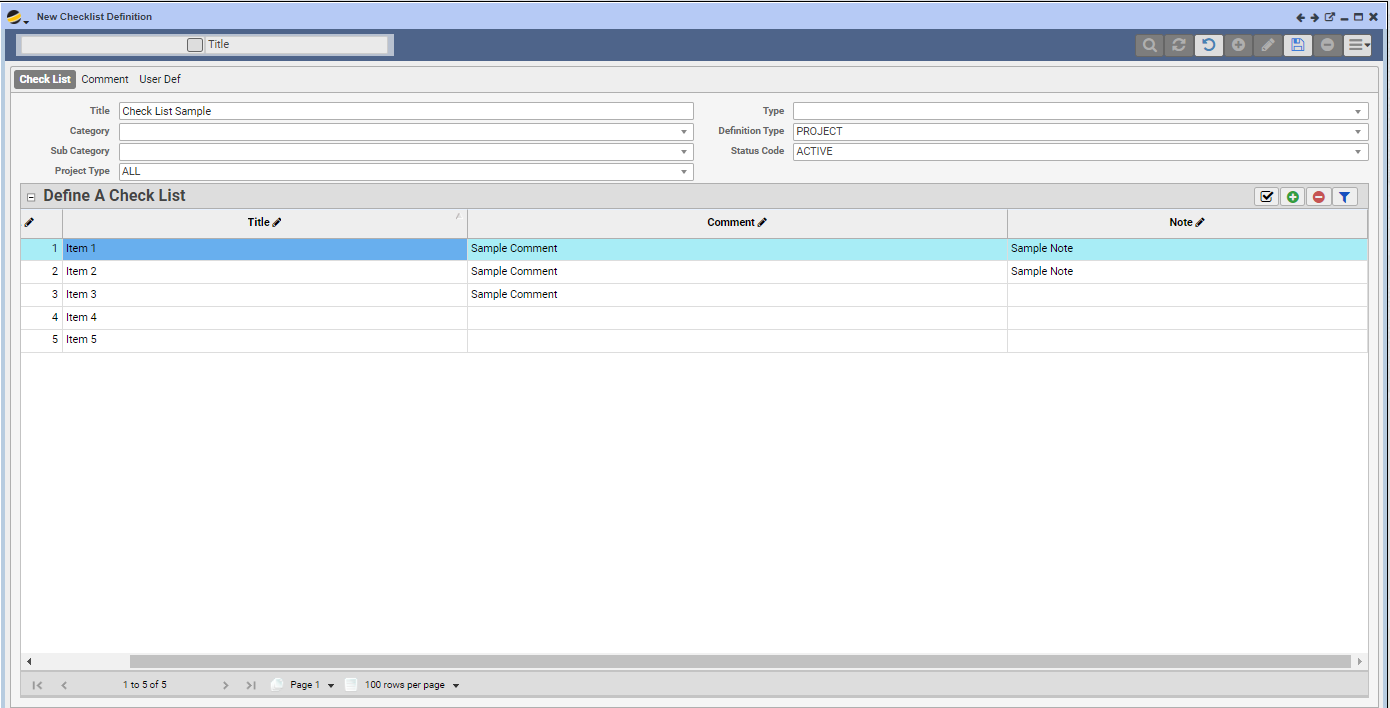
- Click the ADD (+) button. A blank Define a Checklist grid will open
- Fill in the Title field at the top of the form with your Checklist title. Select a Definition Type and Status Code for this list. This will ensure that this list will appear as a checklist option where you will be using it later
- Click the grid ADD (+) button for as many items as you would like on your checklist
- Fill in the Title for each checklist line item (in the Title column) and add Comments and / or notes in their respective columns
- Save the form
Revise an existing Checklist:
- From the Projects main menu, select the Define Checklists item. A Checklist Definition Search window will open
- Use the top search field to search by title, Category, Type, Status and / or other filters to narrow your search, or click the small gray button next to the search field to display a list of all existing checklists
- Drill into an existing checklist using the magnifying glass icon in the grid
- Put the form in EDIT mode and type changes directly into the Define a Checklist grid
- Save the form