Q360 now allows for the tracking of various information related to Subcontractors. The majority of this data is informational only, and aids users in the selection of Subcontractors while ensuring compliance and proper documentation of important information.
Permissions: view, create, delete, edit
- Skills: SUBCSKILLS
- License: SUBCLICTYP
- Insurance: SUBINSTYP
- Rates: SUBCRATE
- Regions: SUBCREGION
- Subcontractor: SUBCCONSOL (view only)
Admin: Set up Skills, License and Insurance options. These will be selected when completing the sub tabs mentioned below
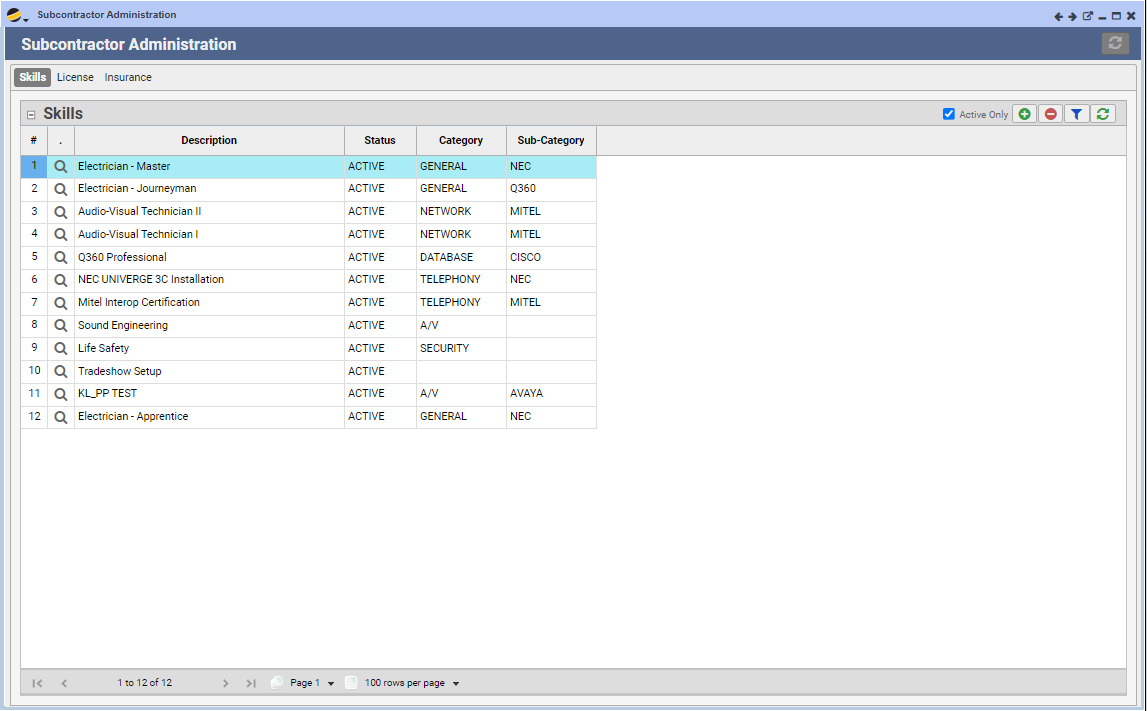
Add a Subcontractor Skill, License or Insurance Policy:
- Path to form: Service menu > Service Admin > Subcontractor Admin
- To add a new Skill, License or Insurance policy, navigate to the appropriate tab
- Click the ADD button on the grid. A Subcontract Skill, License or Insurance window will open
- Complete as many fields as you can (at minimum Description, Status*, Type*, Category* and Subcategory*). Note: the Key, Added By, Add Date, Modified By and Modify Date fields will all auto-populate upon form SAVE
- Click the SAVE button
- Upon refresh of the grid on the Subcontractor Administration window, you should see the newly created record in the grid. Grid line items will appear as options in the sub tabs mentioned below. Note: The Active Only checkbox allows user to view only those Skills, Licenses, or Insurance Policies with a Status of ACTIVE – this Status may be changed on the record (see Edit directions below), or on the Subcontractor tab > appropriate sub tab (by clicking directly in the grid as described below)
*Defined in General Codes
- Status: search for Subcon.
- Type: search for Contractor
- Category: search for Contractor
- Subcategory: Search for Contractor
Delete a Subcontractor Skill, License or Insurance Policy:
- To delete a Skill, License or Insurance policy, navigate to the appropriate tab
- Click the DELETE button on the grid
- Confirm your decision to delete in the pop up window that appears
Edit a Subcontractor Skill, License or Insurance Policy:
- To edit a Skill, License or Insurance policy, navigate to the appropriate tab
- Drill into the line item you wish to edit
- Click the EDIT button on the window that appears
- Make edits as desired
- Click the SAVE button. The Modified By and Modify Date fields will auto-populate on SAVE
Create a Subcontractor:
- Create a new Customer and complete all required fields on the Customer record
- Click the EDIT icon
- Check the Subcontractor flag checkbox. The Subcontractor sub tab will then appear
- Click on the Subcontractor tab
- In the grid that appears, for each sub tab, click the ADD button. See below for details on each sub tab
Skills sub tab:
On this tab, list all applicable skills that might relate to work this contractor may perform for your Company
- Place the Customer form in EDIT mode
- Click the ADD button on the Skills grid
- Select a skill type from the Select Skill Type grid that appears and click the SAVE button. Repeat for all applicable skills
- Enter a Comment, Status, Start Date and End Date by double-clicking and typing directly in the Skills grid. Status may also be changed in this way
- SAVE the Customer form
License sub tab:
On this tab, list all applicable licenses this Subcontractor possesses that relate to work this contractor may perform for your company
- Place the Customer form in EDIT mode
- Click the ADD button on the Licenses and Certifications grid
- Select a license type from the Select License Type grid that appears and click the SAVE button. Repeat for all applicable licenses and certifications
- Enter a Comment, Start Date and End Date by double-clicking and typing directly in the License grid. Status may also be changed in this way
- SAVE the Customer form
Insurance sub tab:
On this tab, list applicable insurance coverage this Subcontractor carries that relates to work this contractor may perform for your company
- Place the Customer form in EDIT mode
- Click the ADD button on the Insurance grid
- Select an insurance type from the Select Insurance Type grid that appears and click the SAVE button. Repeat for all applicable insurance policies
- Enter a Comment, Start Date and End Date by double-clicking and typing directly in the Insurance grid. Status may also be changed in this way
- SAVE the Customer form
Rates sub tab:
- Place the Customer form in EDIT mode
- Click the ADD button on the Rates grid. A new blank line will appear in the grid
- Enter a Comment, Start Date and End Date and Status by double-clicking and typing directly in the Rates grid
- SAVE the Customer form
- Note: user must have SUBCRATE (create) permission in order to save information entered into the Rates grid
Prefer to view this information in video format?