Recurring Dispatch Call Schedule Setup
- Open the Product:
- Create a new Product or select an existing one linked to the Service Contract
- Access the Recurring Tab:
- Navigate to the Recurring tab on the Product form
- Add a Recurring Schedule:
- Click the ADD button in the Recurring Calls grid to add a new Schedule
- Populate the Schedule Fields:
- Start and End Dates: Typically align with the Service Contract’s duration
- Start Date: Determines the initial Date for Call creation. Example: If the Start Date is January 5th and the Frequency is Monthly, Q360 will create a Call on the 5th of each month
- Next Call Date: Reflects when the next Call will be generated based on the defined Frequency. This date does not account for Create Days in Advance settings (see below)
- Last Call Date: Auto-populated when a Call is generated, ensuring no duplicate Calls within the same interval
- Frequency: Select from predefined Frequencies or choose Custom to specify particular months
- Warning Days: Set an alert to notify users about upcoming Calls to help group them for efficiency
- Create Days in Advance: Specify how many days before the Next Call Date you want the Call to be created
- A. Dispatch (Auto Dispatch) checkbox: If a Technician is assigned to the Schedule, enabling this option will dispatch the created Call to the Technician, triggering dispatch-related notifications (e.g., emails). If unchecked, the Call will be created with the Technician Assigned, but not Dispatched
- Add Recurring Items to Calls:
- Go to the Details tab and use the Find Product tab to add Items (e.g., Parts or Services) to include in every generated Call
- Add a Checklist to the Schedule:
- Navigate to the Checklist tab within the Recurring Dispatch Schedule
- Use the Checklist Def drop down menu to select a Checklist and then click the Add Definition button to populate the grid with the selected Checklist
- Note: The same Checklist will be automatically attached to all Calls generated by this Schedule
- Save the Schedule
Generate Recurring Dispatch Calls:
- Method 1 | From the Recurring Dispatch Schedule:
- From the Recurring Dispatch Schedule > Extended Menu, select Generate Recurring Dispatch. This will create the Call for the specific Dispatch Schedule
- Method 2 | Manually Mass Generate Dispatches:
- Navigate to Service menu > Generate Recurring Dispatches. This will mass-generate all due Dispatches across multiple Schedules
- Method 3 | Automatically Mass Generate Dispatches:
- Create a new Background Job for Nightly Job: Recurring Dispatches. For detailed instructions, refer to Background Jobs
Verify Generated Calls:
- Check Updates:
- Last Call Date: Populates with the Date of the most recent Call created
- Next Call Date: Updates based on the defined Frequency and Schedule settings
- Review Created Calls:
- Go to the Call List tab within the Recurring Dispatch Schedule to review generated Calls in the grid
Recurring Dispatch Custom Frequency Setup
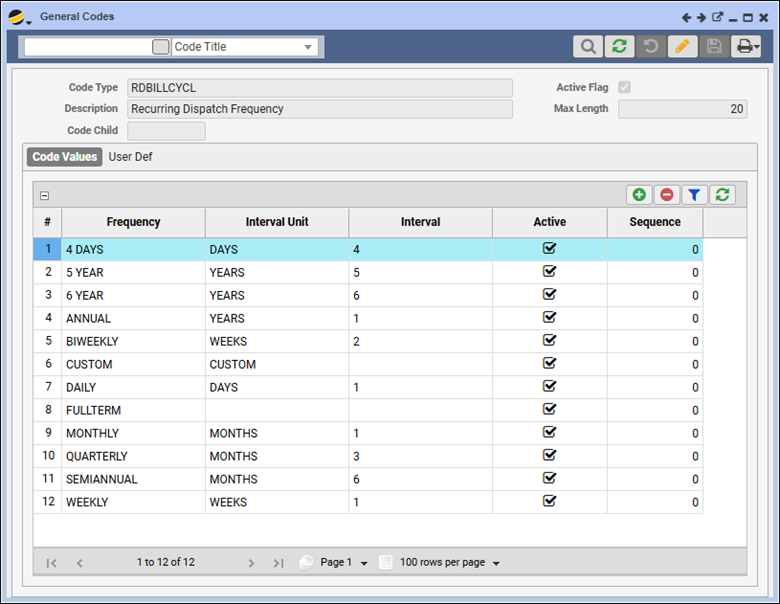
- Go to Maintenance > General Codes > RDBILLCYCL
- Edit or Add Frequencies | form must be in EDIT mode to add or edit rows
- Frequency: Provide a name or description for the frequency (e.g., Bi-Weekly)
- Interval Unit: Choose the unit of measurement (e.g., DAYS, WEEKS, MONTHS, YEARS)
- Interval: Set the value corresponding to the Interval unit. For example, for yearly calls, choose YEARS and enter 1 as the Interval