Extended Quote Authorization Rules: How to Set Up and Use Them in Q360
Extended Quote Authorization Rules in Q360 enable businesses to enforce authorization parameters for sales Quotes based on specific criteria such as User Role, Branch, and Margin limits. This guide provides step-by-step instructions for setting up these rules, along with a sample use case for implementing tiered approvals
What Are Extended Quote Authorization Rules?
These rules define thresholds for who can approve Quotes under specific conditions. For instance:
- Sales Representatives may have restrictions like a minimum Margin requirement of 10%
- Managers or higher-level Approvers may have different thresholds, such as the ability to approve Quotes with a lower Margin (e.g., 5%)
The rules can also limit Quote approvals based on Pre-tax Total, Total Cost, or Gross Margin (GM%), ensuring proper oversight of discounts or low-margin deals
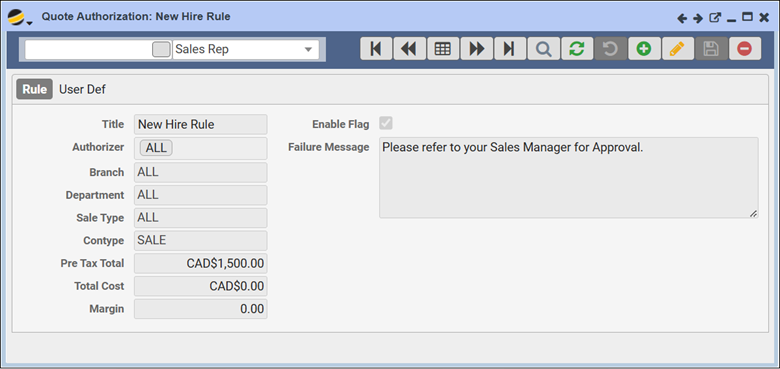
Setting Up Extended Quote Authorization Rules
Follow these steps to configure authorization rules in Q360:
- Access the Extended Quote Authorization Rules Screen
- Navigate to Sales > Sales Admin > Extended Quote Authorization Rules
- Add a New Rule
- Click the ADD (+) button
- Confirm by selecting OK to create a new rule
- Configure Rule Details
- Title: Enter a descriptive name for the rule, e.g., New Hire Rule or Manager Approval
- Authorizer: Choose the User or Group this rule applies to (e.g., individual Sales Reps, Managers, or “ALL”)
- Branch, Department, Sale Type: Specify additional criteria to tailor the rule. For example:
- Branch: Assign rules to specific Branches or leave as “ALL”
- Department: Restrict rules to relevant teams, such as Sales
- Sale Type: Apply to specific Sale Categories (e.g., Service vs. Product Sales)
- Define Approval Thresholds
- Pre-Tax Total: The maximum Quote total before tax that the User may approve
- Total Cost: The maximum Cost the User is authorized to approve
- Margin (%): The minimum Gross Margin percentage required for the User to approve a Quote
- Enable the Rule
- Check the Enable checkbox to activate the rule
- Set Failure Messages
- Enter a custom message that appears when a User tries to approve a Quote outside their authorization. For example: “Please refer to your Sales Manager for approval”
- Save the Rule
- Click the Save icon to finalize
Example Use Case: Tiered Approval Levels
Scenario:
A Company wants to implement the following tiers for Quote approvals:
- Sales Reps (Authorizer: ALL): Can approve Quotes with a Gross Margin above 10% and pre-tax totals under $100,000
- Branch Managers (Authorizor: Specific Branch Manager): Can approve Quotes with a Gross Margin above 5% and pre-tax totals under $250,000
- Executives (Authorizer: Specific CFO / VP): Can approve all Quotes exceeding $1 million or lower-margin deals (below 5%)
Implementation Steps:
- Create a denial rule for Sales Reps specifying:
- Margin Min: 10
- Pre-Tax Total Max: $100,000
- Failure Message: “Please contact your Branch Manager for approval”
- Add an approval rule for Branch Managers with:
- Margin Min: 5%
- Pre-Tax Total Max: $250,000
- Set up specific rules for Executives to approve any quote:
- Leave Margin and Cost thresholds at very low Margins, or high Price and Cost thresholds such as 1% Margin or $9,999,999 Pre Tax Total and Total Cost
This way, you do not need to update the rules every time there is a new hire, but you set a blank rule for everyone in the Company, and specific rules to facilitate approval for Branch Managers, and Executives.
Tips for Managing Authorization Rules
- Test the Rules: Prior to implementing your rule setup on your production environment, we recommend testing them on one of your secondary environments such as Test or Train
- Disable Rules When Not Needed: If a rule becomes obsolete, uncheck the Enable box instead of deleting it for future reference
Frequently Asked Questions
What Happens If No Rules Are Enabled?
By default, any User with authorization permissions can approve all Quotes without restrictions
How Do Rules Interact?
Rules apply based on the specificity of criteria (e.g., User, Branch, Margin). If multiple rules conflict, the system typically prioritizes the most restrictive rule