Forms in Q360 are where you will create records including Opportunities, Service Calls, Customers, Orders and much more. You may access forms by clicking on topics within the Main Toolbar.
Form Search
- Each form within Q360 has its own Quick Search field at the top of the form. Search criteria appears in the field directly to the right of the Quick Search field.
- Search criteria will default to the Primary Key for each form, but may be changed by clicking in the criteria field and selecting new criteria from the drop down menu that appears.
- Quick Search defaults can be set and changed by clicking the Advanced Search icon in the Quick Search field.
- For additional instruction on using Search functions within Q360, see Search videos in Procedures and Knowledge Base Articles.
Single Record Form
An individual record may be opened by searching for it or by following a hyperlink from a related form.
The Action Bar on a single record contains several options:
- Time Bill icon: start or stop a time bill
- Refresh icon: refresh the form (sometimes required after saving to see saved changes)
- Form Reset icon: operates like the ‘back’ or ‘undo’ option in many apps / browsers
- Add New Record icon: add a new record
- Edit Record icon: edit this record
- Save Record icon: save changes made to this record
- Delete Record icon: delete this record
- Extended Menu: options on this drop down menu vary depending on the form
Accessing a Record Form from a Search Results grid
If you access a Record via a Search Results grid, you will have an additional option on the form – to navigate to the previous or next record in the same Search Results grid.
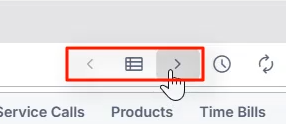
Click the right arrow button to navigate to the next Record in the same Search Results grid. Click the left arrow button to navigate to the previous Record in the same Search Results grid. Click on the grid icon between the arrows to reopen the Search Results grid.
Additional Form Options
Each form will have an additional drop down menu (accessible on the form tab) that includes four options:
- Copy form URL
- Add Bookmark
- Set Reminder
- Close form
Each tab on a form will have its own subset of navigation icons that will vary by tab and by form. Some examples are:
- Reset
- Filters
- Add
- Active Only Checkbox (when checked, results displayed will include only currently ACTIVE Status items)
- Tab Extended Menu
Sub Tabs
Many form tabs feature sub tabs. These will generally be displayed in the bottom portion of a form. Sub tabs may feature their own navigation options including Reset and Filters icons.