Approve time requests
For HR personnel to approve time requests, complete the following steps:
- Go to HR > Employee and open the record for the employee that you want to view.
- Click the Schedule tab.
- In the Schedule grid, locate and highlight the request. If there are multiple requests, you can highlight multiple rows.
- Click the extended menu button and select Approve Selected. If there are multiple requests, you can simply click Approve All without having to highlight rows.
After a request is approved, the employee is sent a confirmation email containing a summary.
Decline time requests
For HR personnel to reject a time request, complete the following steps:
- Go to HR > Employee and open the record for the employee that you want to view.
- Click the Schedule tab.
- In the Schedule grid, locate and highlight the request. If there are multiple requests, you can highlight multiple rows.
- Click the extended menu button and select Deny Selected. If there are multiple requests, you can simply click Deny All without having to highlight rows.
After a request is declined, the employee is sent an email containing a summary including denial comments.
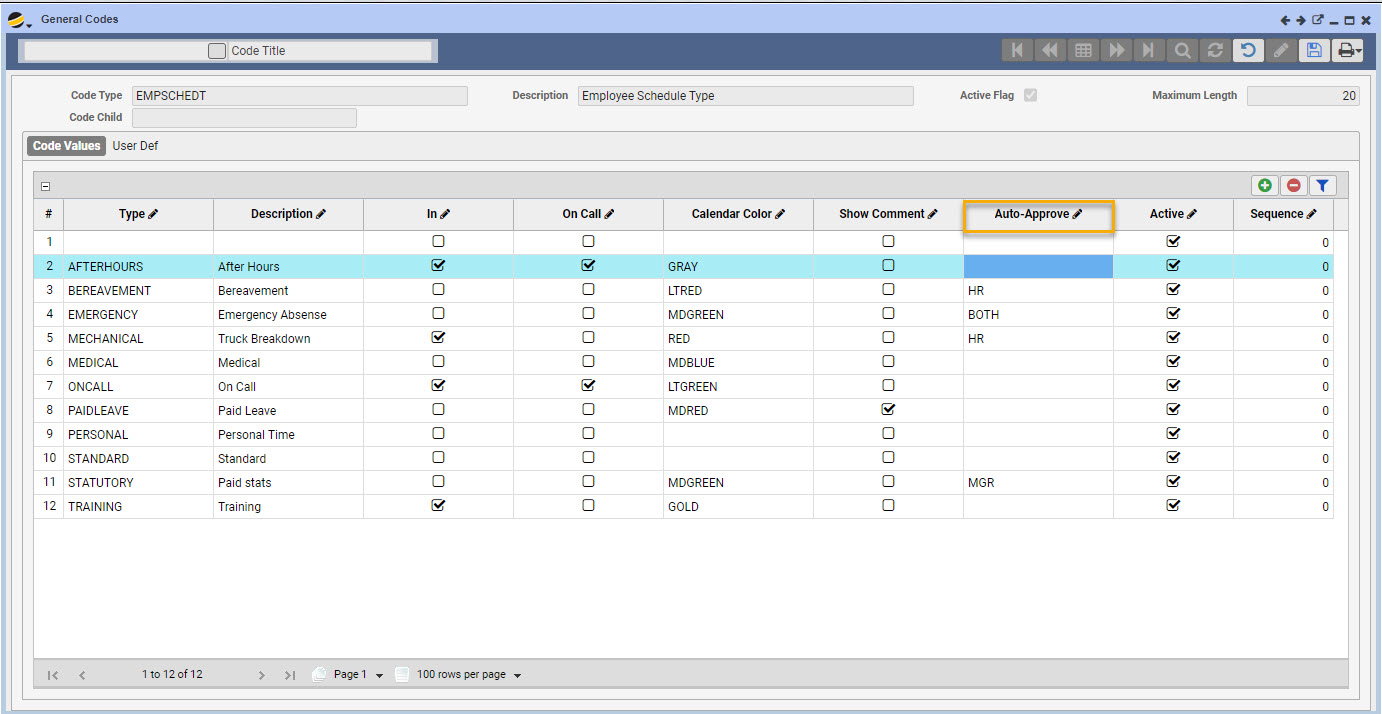
Auto Approve time requests:
HR and / or Manager Approval may be set to Auto Approve from the General Code EMPSCHEDT using the Auto Approve column. Place the form in EDIT mode, double click inside the desired Auto Approve column cell, and select HR, MANAGER or BOTH dependent upon which approvals you wish to set to auto approve. When finished, SAVE the form.