Occasionally, after sending a PO (PO 1) to a Vendor (Vendor A), you are notified that the item cannot be fulfilled in the required time frame. In this case, another PO can be generated and sent to a different vendor (Vendor B) using the following process.
- Create a new manual PO (PO 2) to Vendor B, adding the master number of the item that you wish to inquire about.
- Once Vendor B responds that they can indeed fulfill the order as desired, open PO 1 that was sent to Vendor A.
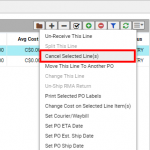
- Select the corresponding line item PO 1 and use the extended menu option Cancel Selected Line(s). Assuming that the line was linked to an order and that the item still needs to be fulfilled, this will move the line item back to the Purchasing Q.
- Once back in the Purchasing Q, use the extended menu option Choose a Vendor for selected items and select Vendor B.
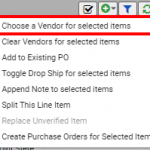
- After selecting Vendor B, select the extended menu option Add to Existing PO.
- Select PO 2 from the available POs for that Vendor. The item is added to that PO with the associated linked Order info and the PO 2 form is opened.
- Select the manual line item on PO 2 that was added in Step 1 above. Use the extended menu option Cancel Selected Line(s) to remove the item from the PO. Since this item was not linked to an order, the item is cancelled and does not show up in the Purchasing Q.