Report#: None
Path: Service > Work Queues > Dispatch Q
Purpose: Although this is not a report, per se, the Dispatch Q is a vital tool to monitor all active service calls. It allows the user to sort and filter calls by various criteria as needed. Further, it has some key information in the grid that helps manage the service desk.
Filters: Note: Unlike other reports, filter fields on the Dispatch Q are located at the top of the form, instead of on a left side fly-out tab.
- Queue: i.e. REMOTE, REPAIR, TRIAGE. This is a drop down menu
- Zone: i.e. EAST, WEST, METRO, CENTRAL. This is a drop down menu
- Call Type: i.e. SERVICE, BOX. This is a drop down menu
- Company: This is a drop down menu
- Branch: This is a drop down menu
- Department: This is a drop down menu
- Scheduled: Choose scheduled date from calendar
- CSR/Tech: CSR or Technician assigned to call. This is a drop down menu
- Status: i.e. COMPLETED, DISPATCHED. This is a drop down menu
Based on the filter choices above, your data set will be returned in the Search Results Grid, where you can further filter your results by clicking the filter button and searching via any of the columns.
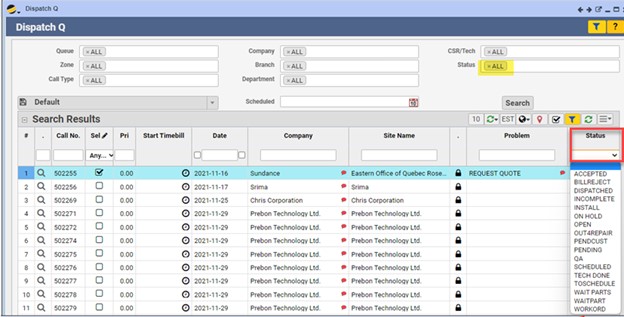
Returned Results:
- Call No.: Service Call Number
- Sel: ON allows user to ONLY see the line item(s) selected. ANY displays all rows. ON shows only the row selected and Off turns that option off
- Pri: Priority of the Service Call (1-5)
- Start Timebill: Click clock button to start a time bill for a Service Call
- Date: The Date the Service Call was created
- Company: Company for which the Service Call was created
- Site Name: Site for which the Service Call was created
- Access Info (lock icon): If there is access information required (vpn etc.), click on lock icon to be taken directly to the information
- Problem: Displays Text in the longer description for problem code. Hover tip shows Description (drop down in main call tab)
- Status: Status of the Service Call
- Dispatch Q: Displays Dispatch Q that Service Call is currently in
- Est. Fix Time: Details tab of the call, this is a manual entry with Estimated Fix Time
- TB: Displays Timebills against this Service Call
- Zone: Displays customer time zone information for site
- City: Displays Site City
- State: Displays Site State
- System ID: Displays System ID Field from main call tab
- CSR: Customer Service Representative for Service Call
- Tech Assigned: Technician/person to whom Service Call is dispatched
- Dispatch Date: Date the Service Call was dispatched
- Dispatched Age: How long the Service Call has been dispatched
- Last Update: Last update on a service call (event, adding documentation, updating problem or solution etc.)
- Update By: User ID of person who last updated the Service Call
- Task No.: Displays tasks linked to Service Call
- Call Type: Displays i.e. Call Type, Box, T&M Service, Warranty (from Call type dropdown-main call tab)
- Branch: Branch against which Service Call was created
- Dept.: Department against which Service Call was created
- Req Start: Customer Request for Start time
- Req End: Customer Request for End time.
- Time: Displays time of day customer would like work completed (morning/afternoon)
- Scheduled: Displays dispatched Service Calls
- Last Email: Displays last email sent or received date
- Incident No.: Customer’s incident number if they have one or third party tech company etc.
- Category: Category of Call
- Sub.Category: Sub-Category of Call
- Problem Code: Short Problem Description chosen from Drop down (main call tab)
- Address: Customer address
- Zip: Customer zip code
- Country: Customer country
- Longitude: Customer longitude
- Latitude: Customer latitude
- Caller: Person who submitted call
For more information on other useful reports, check out our Sales and Operations Reports Webinar.