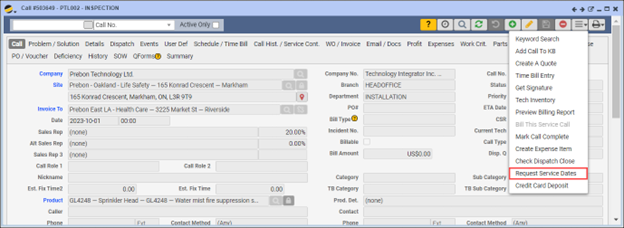
The “Request Service Dates” feature brings a significant improvement to Q360’s Service scheduling process by enabling direct email invitations to Customers, allowing them to choose their preferred Service dates. This addition, available through both Dispatch Q and Call forms, streamlines the scheduling process and enhances the overall Customer experience
Prerequisites
Caller on the Call must have a valid email address on file
Configuring Time-of-Day Preferences
To provide customers with clear options for their Service time preferences:
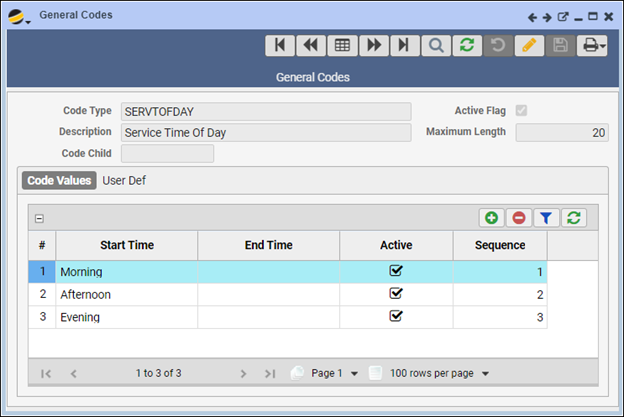
- Navigate to Maintenance menu > General Codes > SERVTOFDAY
- This General Code is pivotal for setting up the available options for Customers when choosing their preferred “Start Time” for service. Ensure the Active checkbox is marked for each time slot you wish to appear in the drop down menu for Customers
- The “End Time” column is not utilized in this Customer-facing feature and can be overlooked in setup
Configuring the SERVICEDATEREQUEST_STATUS Config Item
Following the setup of time-of-day preferences, the next critical step is configuring the SERVICEDATEREQUEST_STATUS to automate the process of updating Call Status when a Customer responds
- The SERVICEDATEREQUEST_STATUS config item is essential for defining how the system responds once a Customer selects their preferred Service dates and times. This configuration allows for the automatic update of the Call’s Status to a specific predetermined Status
- Please reach out to your Customer Care Team with the desired Call Status to be configured for your environment
Initiating Service Date Requests
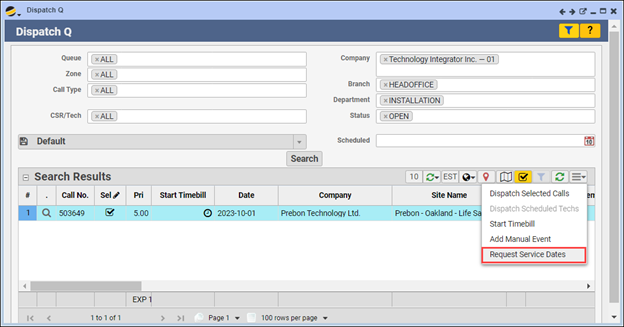
Initiate a request from the Dispatch Q*:
- Dispatch Q > Search Results grid
- Select a Call and access the Extended Menu
- Select Request Service Dates option. This action sends an automated email to the Customer, facilitating their selection of preferred service dates through an included link
*This method is especially useful for managing multiple Service Calls, allowing for efficient scheduling directly from the Dispatch Q interface
Initiate a request from the Call form**:
- Access a Call form
- From the Extended Menu, select Request Service Dates. This option sends an email to the Customer with a form link for selecting preferred service dates
**Opting to initiate from the Call form is suitable for detailed scheduling needs, ensuring each Customer receives focused and relevant communication for their service appointment