Schedule routine or one time emailing of live data reports. May be set up as a background job or scheduled via the live data report “Schedule Report” button.
Prerequisites / recommended settings:
- post_max_size – PHP default is 8M. Recommended: 128M+
- memory_limit – PHP default is 128M. Recommended: 512M+
- For large result sets (30,000 + rows), using different formats can affect the capacity. For reports that are likely to exceed the capacity configured by your server settings, paginating the report or using the “Top Rows” to limit the results may be necessary
- Including a large number of columns, or columns with large amounts of text i.e. SOW, can significantly reduce row capacity
Config:
- LIVEDATA_SCHEDULE_EXTERNAL
- When ON, user may schedule delivery of LDRs to EXTERNAL user types (default = OFF)
Permission:
- “Schedule” checkbox added to Live Data Permissions tab
- Checking this box will allow this user to schedule automatic emailing of LDRs
Compatibility:
- Compatible with all types of LDRs, with various limitations based on server settings.
- Paginated reports: can be built with or without designer. Pagination maximizes export capacity.
- Non-paginated reports: can be built with or without designer. Export capacity will be limited by the PHP memory limit.
Additional Limitations:
- Email attachment size limit. Typically 20-30M, varies by email provider. The size of the exported file varies based on format and amount of data.
Schedule Report Tab:
- Added to the Live Data Report edit form (Live Data > Live Data Reports > Load a Report > Schedule tab
- Allows a user to see their scheduled reports and uninstall recurring schedules
- ADMIN users will see all schedules. Other users will only see the schedules they created
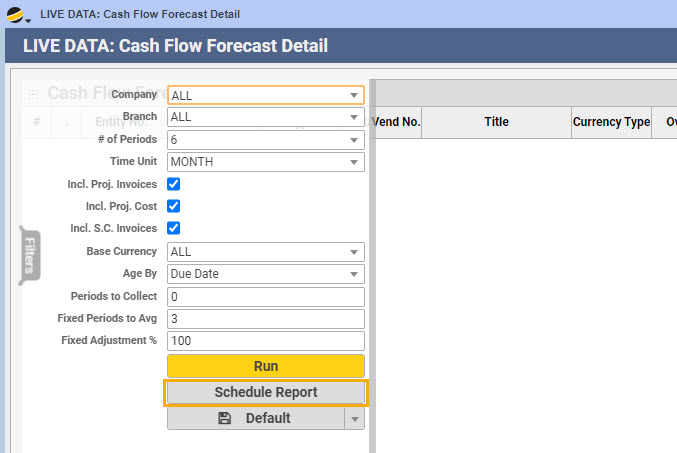
Schedule Report Button:
- Visible if user has above mentioned schedule permission for that report. Visible to all admins
- Clicking the Schedule Report button opens the Schedule Report modal
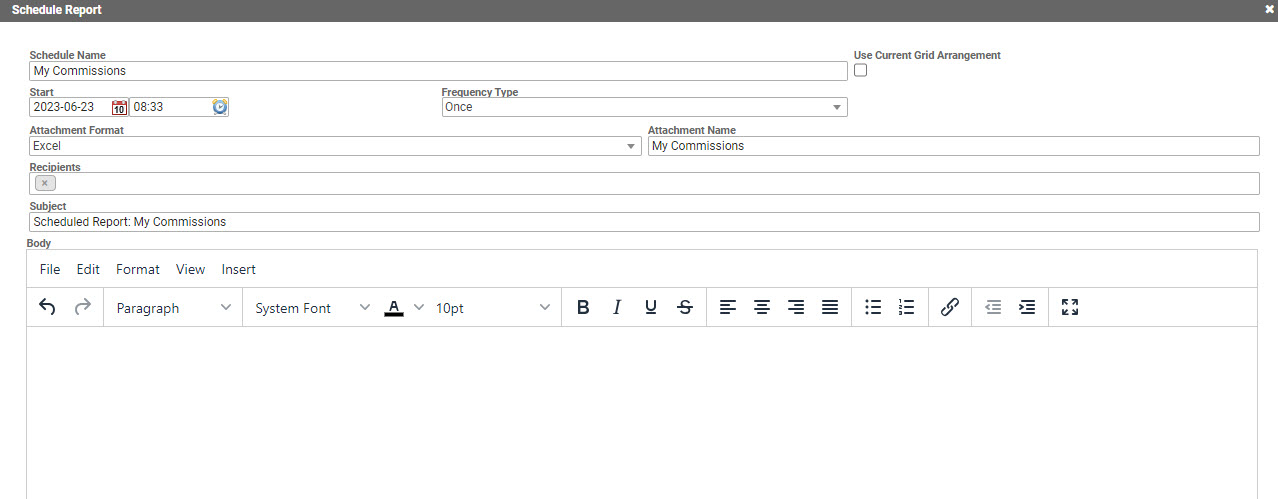
Schedule Report Modal:
- Schedule Name: Auto filled with report name, may be edited
- “Use Current Grid Arrangement” checkbox: when checked, the exported attachment’s column order and hidden columns will match the current state of the grid at the time of scheduling. When unchecked, these will match the default formatting of the live data report
- Frequency Type: dropdown menu (Once, Minutes, Hours, Days, Weekly, Monthly). If a recurring option is selected, a Frequency Interval selection field will appear
- Start Date: date to begin scheduled emailing
- Attachment format: dropdown menu (Excel, CSV, HTML, Embedded HTML). Note: Embedded HTML will place the results into the body of the email as a table.
- Attachment Name: auto filled with report name, may be edited
- Recipients: A Dropdown menu (select from users). Note: User must have an email address associated. Only Users with valid USERIDs can be selected.
- Subject: auto filled with “Scheduled Report: Report Name,” may be edited
- Body: design email template here or leave blank
When all fields have been completed, click Submit button to schedule report emailing
Prefer to view this information as a video?