- Go to File > HR Time Request. The Employee field defaults to the name of the logged in User
- Enter the time off you are requesting:
- In the Start Date and End Date fields, enter the same date for a single day or a range of dates for multiple days off
- In the Type field, select the appropriate option as defined for your organization
- In the Comments field you can optionally add Comments for the Manager and HR Approver to read
- The Days Off / Allocations grid may populate with the corresponding days allowed and the remaining for the designated Employee in the date range period, based on the Start Date and End Date fields in the middle of the form
- In the Start Date and End Date fields, enter the same date for a single day or a range of dates for multiple days off
- Click the Submit button
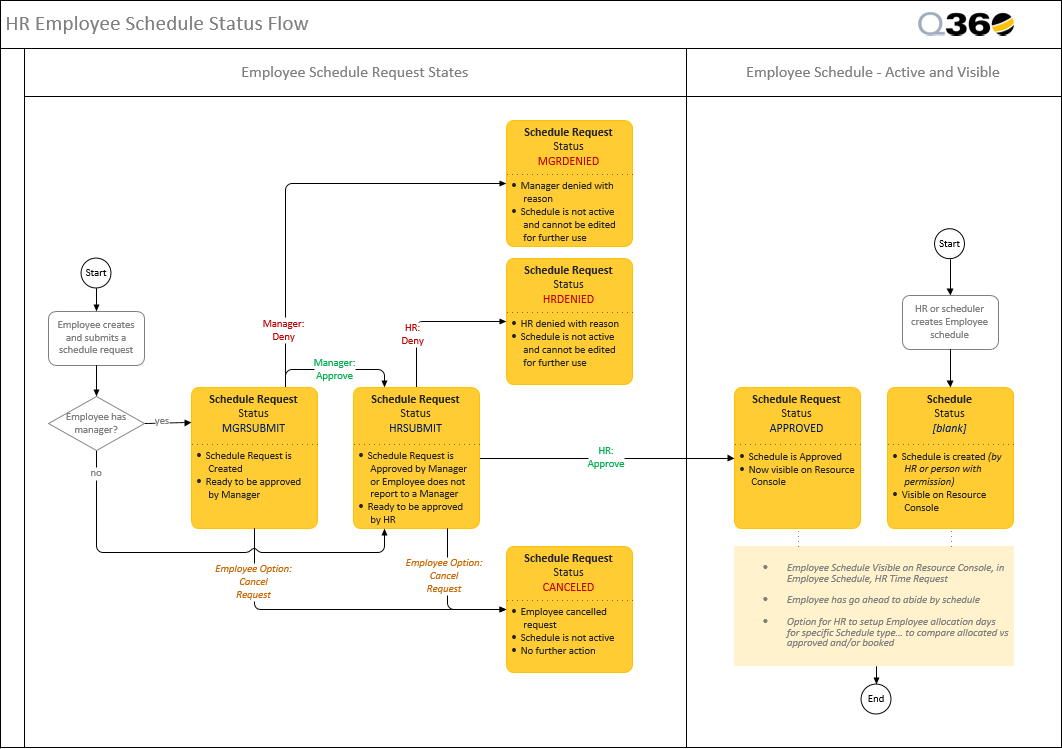
- Each requested day displays in the Schedule grid with a status of MGRSUBMIT. If the User does not report to a direct Manager, the status will change to HRSUBMIT
- The Time Request is now available for Manager approval, followed by HR approval
- The Employee will receive an automated email either approving or denying the request by both the Manager and the HR Approver
- At any time before the request status changes to APPROVED, an Employee can cancel a Time Request. From the Schedule grid Extended Menu, select Cancel Selected
Submitted time requests go through the MGRSUBMIT, HRSUBMIT, and APPROVED statuses. The following diagram demonstrates the Q360 employee schedule status flow for time requests: